
Sign in
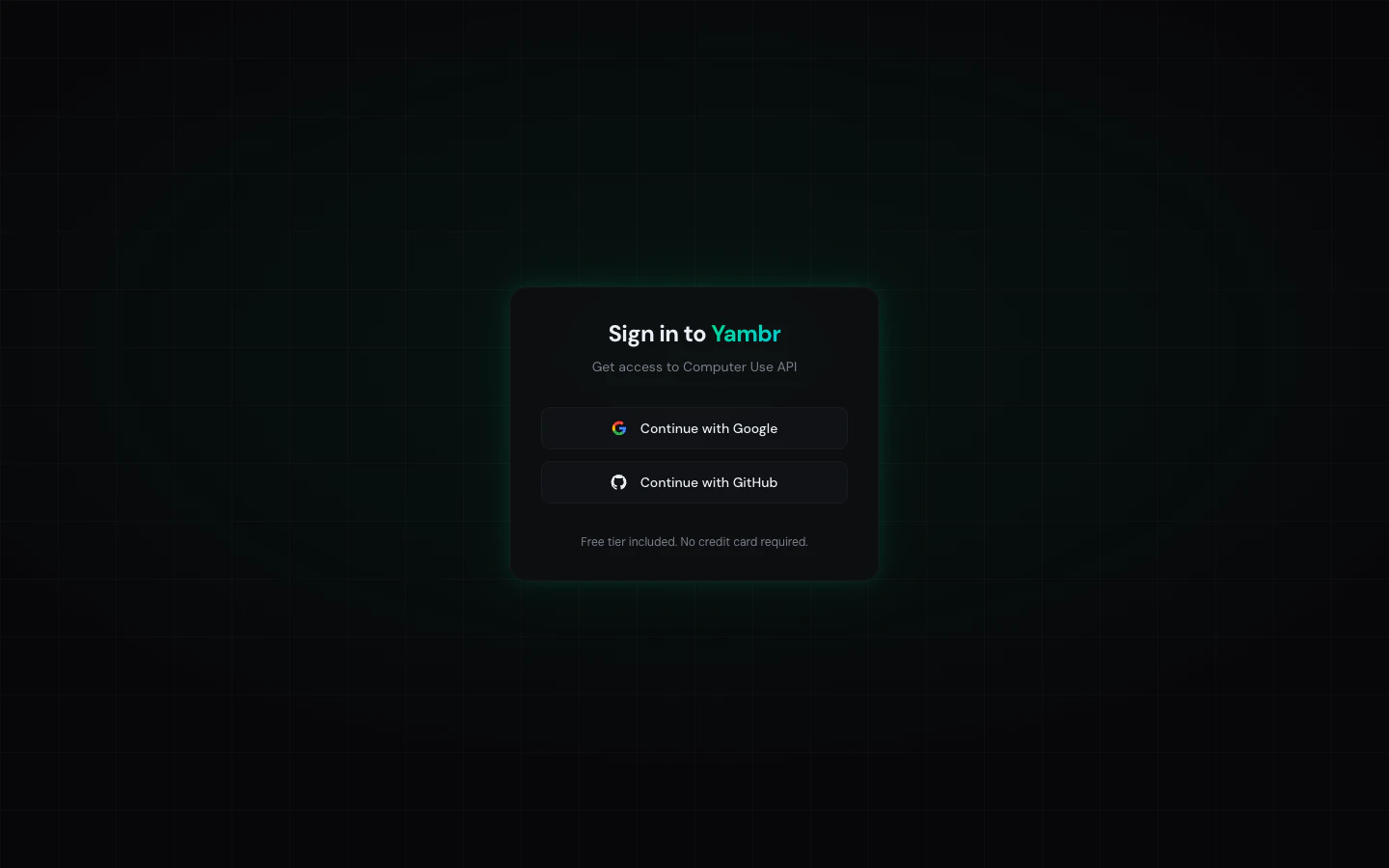
- GitHub
If you need SSO (Okta, Azure AD, generic SAML), ping us on Telegram — it’s a short conversation.
Approval queue
New accounts sit in a queue until an admin approves them. Most requests clear quickly — on Telegram you can ask for a nudge. When an admin approves your account they set your budget (default $10 / 30 days, rolling). After that your first key is issued and you land on a populated dashboard.Dashboard
Main screen. Three sections:- Header — your signed-in email, a Sign out button, and a link to the admin panel if you’re an admin.
- API keys — list of your active keys (up to 5), with per-key budget, live spend, and per-key actions. See below.
- Integration snippets — tabs with copy-paste configs for Claude Desktop, OpenAI SDK, n8n / Make, and Cursor. These are the authoritative snippets — if a tool expects a slightly different shape, the dashboard always wins.
API keys section
Per-key row shows:- Alias —
sk-...{last-4}. Full value is shown only once on creation; copy it immediately. - Budget —
max_budgetwith a progress bar:$spent / $total, rolling 30-day window. - Parallelism —
max_parallel_requests: 5by default. - Created date.
- Actions —
Create,Revoke,Reissue.
- 5 active keys per user. Revoke one to free a slot.
- Reissue keeps the alias slot and budget; the old value becomes invalid the moment the new one appears.
Integration tabs
Four tabs, each with a copy-paste snippet:- Claude Desktop — MCP server entry with URL, Bearer token, and headers.
- OpenAI SDK — Python example showing your model provider + Yambr as an MCP tool server.
- n8n / Make — URL + key + header fields to paste into the MCP Tool node.
- Cursor — MCP server entry for
settings.json.
Admin panel
Visible only if your email matches the configuredADMIN_EMAIL. Handles user approvals.
Pending requests table
Columns: email, name, company, status, spend / budget, active keys, sign-up date. Filter chips:all, pending, approved, rejected.
Approve
Opens a dialog:- Set the monthly budget (default $10).
- Click Approve → generates a key for the user and flips status to
approved.
Reject
Marks the requestrejected. The user is notified via the app.
Stats summary
Aggregated user counts and key counts at the top of the admin view.Settings
Not a dedicated page yet. Things you’d expect to find here:- Password — N/A; auth is OAuth.
- Rotate key — use Reissue on the keys row.
- Change email — change your GitHub / Google email and sign in again.
Related
- API keys — deep-dive on key lifecycle
- Access model — what the key unlocks, what it doesn’t