
xlsx skill removes both problems: every formula is live, the chart is a real chart object, and conditional formatting survives the round-trip into Excel or Google Sheets.
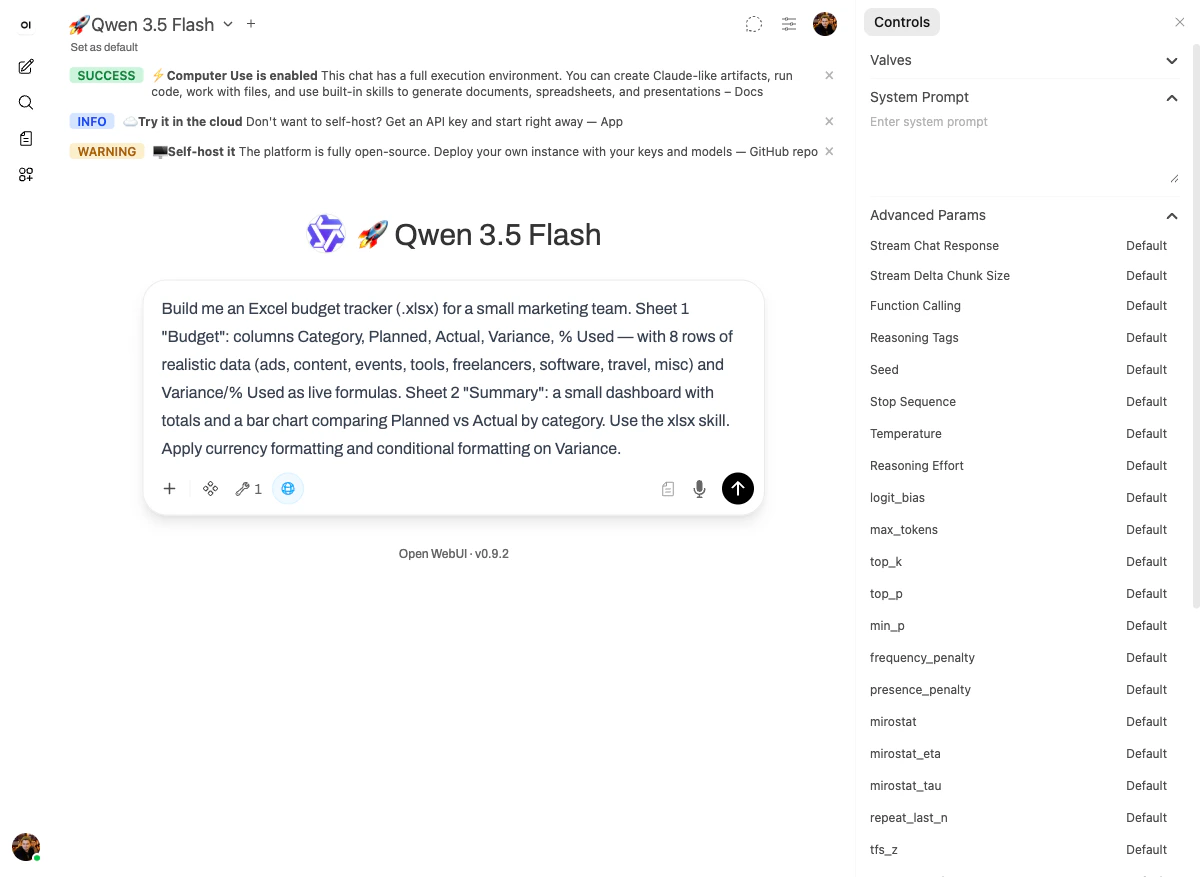
The prompt
What happened
Thexlsx skill wraps openpyxl plus a LibreOffice-based recalculation step. After generating the workbook, the model runs recalc.py on it to confirm every formula evaluates without #REF! or #DIV/0!. That validation step is the difference between “the model wrote a spreadsheet” and “the spreadsheet works.”
The model’s own confirmation:
The recalculation script confirmed all 38 formulas work correctly with zero errors ✅
The output
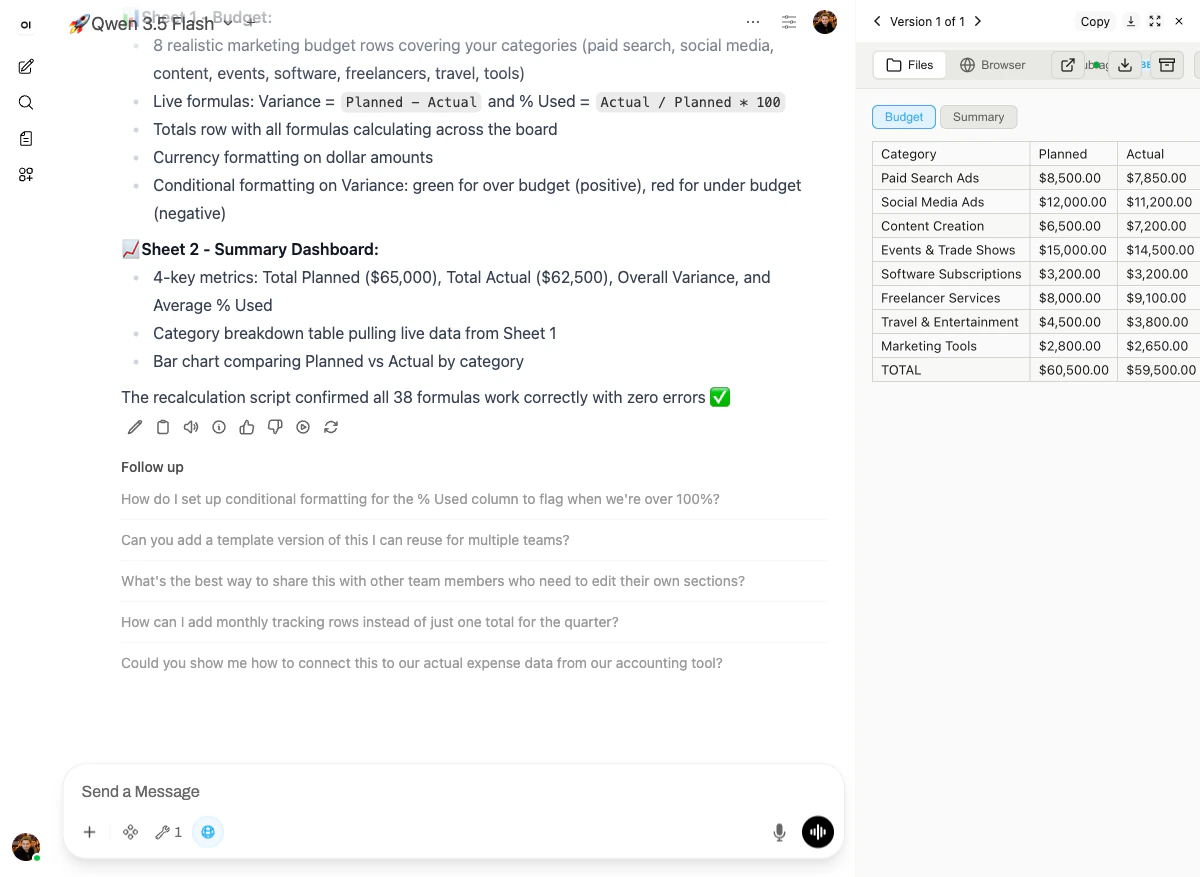
- Sheet 1 “Budget” with 8 categories and realistic values (Paid Search Ads $8,500 / $7,850 · Social Media Ads $12,000 / $11,200 · Events & Trade Shows $15,000 / $14,500 · …).
- A TOTAL row at the bottom totalling $60,500.00 / $59,500.00.
- A Summary sheet tab next to the Budget tab.
- 8 realistic marketing budget rows covering paid search, social media, content, events, software, freelancers, travel, tools.
- Live formulas:
Variance = Planned − Actualand% Used = Actual / Planned * 100. - Totals row with all formulas calculating across the board.
- Currency formatting on dollar amounts.
- Conditional formatting on Variance: green for over budget, red for under budget.
- Sheet 2 — Summary Dashboard: four key metrics (Total Planned, Total Actual, Overall Variance, Average % Used) plus the Planned-vs-Actual bar chart.
Why it works
Three things have to be true for a spreadsheet output to be useful:- Formulas have to be live — otherwise the user can’t change a value and watch the totals update.
- The chart has to be a real chart object — otherwise you can’t restyle it or extend the data range.
- Conditional formatting has to survive the format — otherwise the variance column is just plain text.
xlsx skill handles all three, and the bundled recalc.py script catches formula errors before the file ever reaches the user.
Next: Freelance invoice in PDF →