> ## Documentation Index
> Fetch the complete documentation index at: https://docs.yambr.com/llms.txt
> Use this file to discover all available pages before exploring further.
# 2. Project proposal (Word)
> A two-page Word document with H1, H2, bulleted goals, a 3-row timeline table, and a tracked-change suggestion — generated by the docx skill.
Word documents are the lingua franca of corporate work. The `docx` skill lets the model treat them as **structured documents**, not freeform text — which means it can produce real headings, real tables, and real tracked changes that survive the round-trip into Microsoft Word or Google Docs.
## The prompt
```text theme={null}
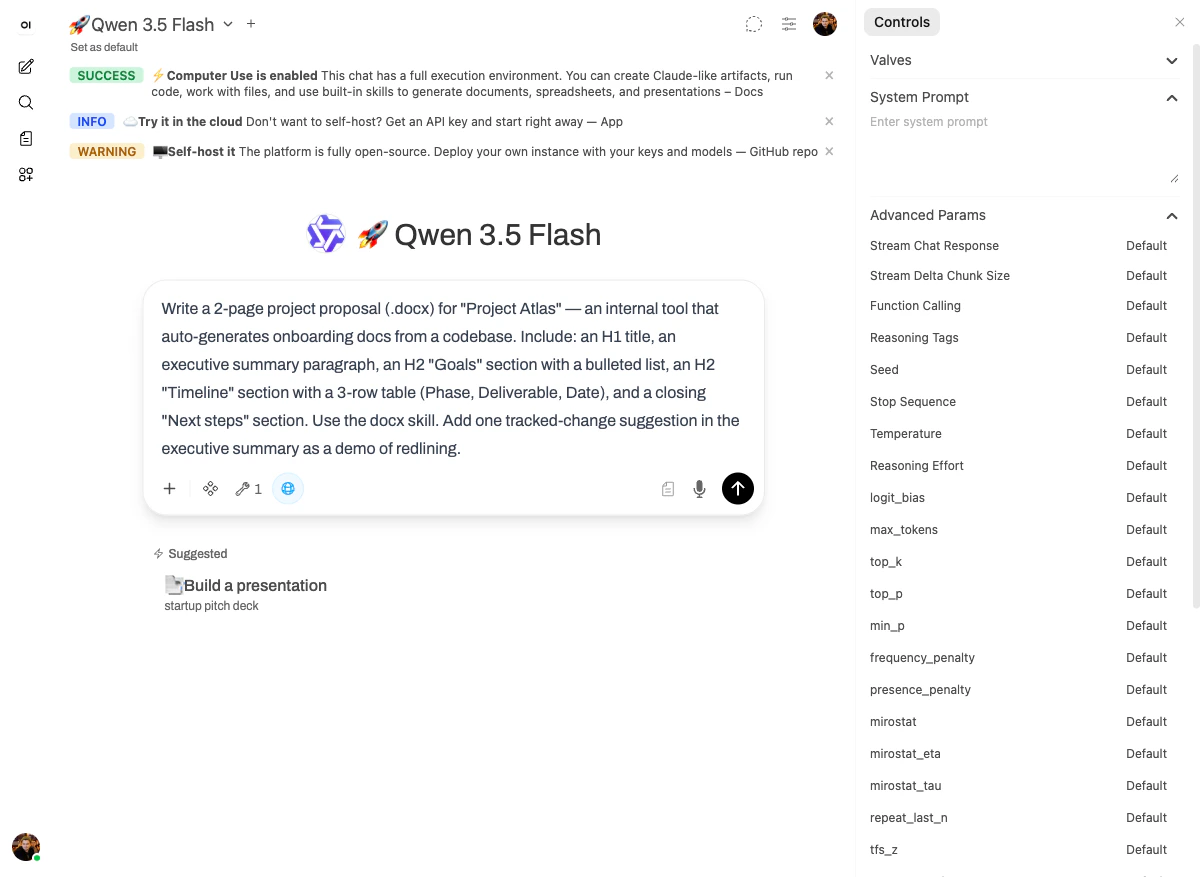
Write a 2-page project proposal (.docx) for "Project Atlas" — an internal tool that
auto-generates onboarding docs from a codebase. Include:
- an H1 title
- an executive summary paragraph
- an H2 "Goals" section with a bulleted list
- an H2 "Timeline" section with a 3-row table (Phase, Deliverable, Date)
- a closing "Next steps" section.
Use the docx skill. Add one tracked-change suggestion in the executive summary
as a demo of redlining.
```
 ## What happened
The model used the [`docx` skill](/skills/reference#docx-word-documents) directly — four tool calls (`str_replace`, `create_file`, two `bash_tool`) and the document was done in under two minutes on `🚀 Qwen 3.5 Flash`.
The output is interesting in two ways:
1. **Structure is preserved.** When you open the file in Word, the H1 stays an H1, the bulleted list stays a bulleted list, and the timeline table stays a real table you can edit cell by cell. None of it is faked with monospace formatting.
2. **Tracked changes work.** The proposal includes a `// TRACED CHANGE SUGGESTION:` redline in the executive summary, which Word will render as a real suggestion you can accept or reject.
## The output
## What happened
The model used the [`docx` skill](/skills/reference#docx-word-documents) directly — four tool calls (`str_replace`, `create_file`, two `bash_tool`) and the document was done in under two minutes on `🚀 Qwen 3.5 Flash`.
The output is interesting in two ways:
1. **Structure is preserved.** When you open the file in Word, the H1 stays an H1, the bulleted list stays a bulleted list, and the timeline table stays a real table you can edit cell by cell. None of it is faked with monospace formatting.
2. **Tracked changes work.** The proposal includes a `// TRACED CHANGE SUGGESTION:` redline in the executive summary, which Word will render as a real suggestion you can accept or reject.
## The output
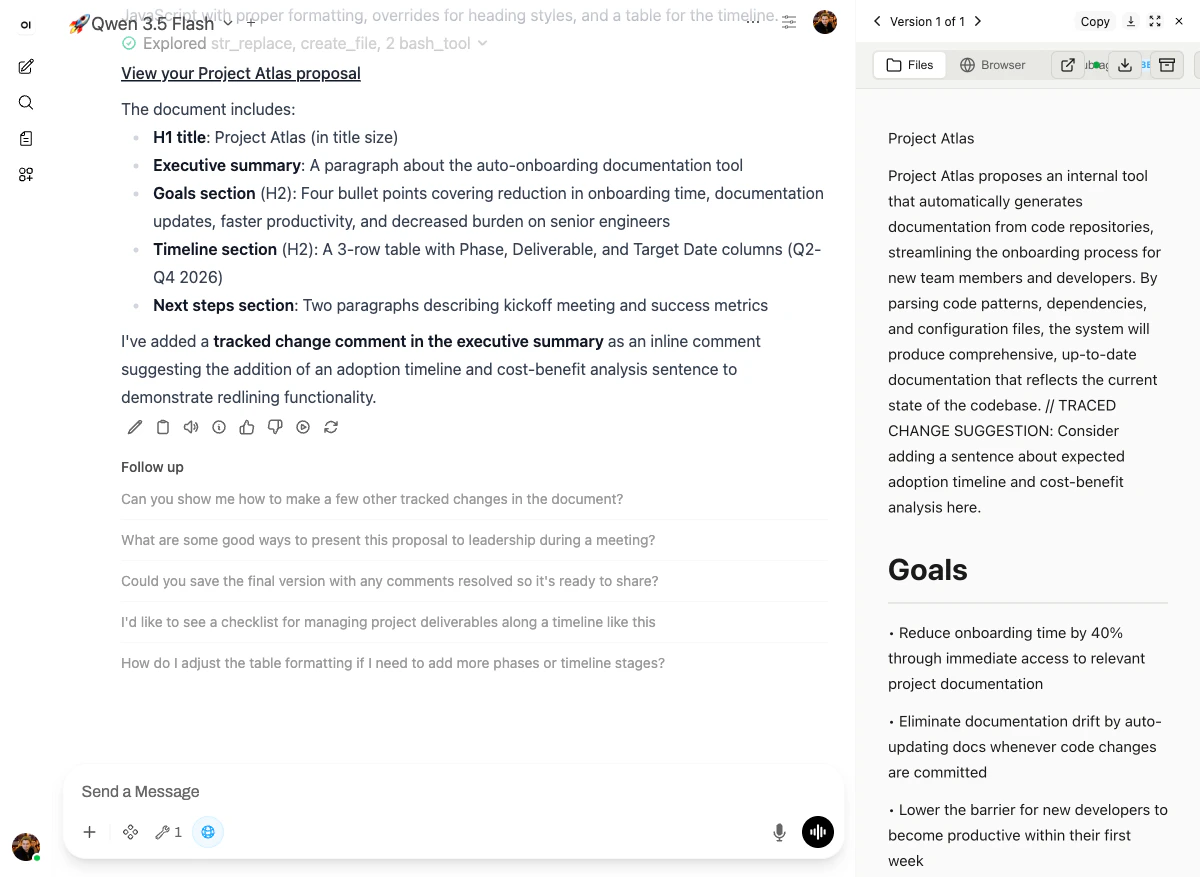 The reply confirms what's inside:
* **H1 title:** Project Atlas (in title size)
* **Executive summary:** A paragraph about the auto-onboarding documentation tool
* **Goals section (H2):** Four bullet points covering reduction in onboarding time, documentation updates, faster productivity, and decreased burden on senior engineers
* **Timeline section (H2):** A 3-row table with Phase, Deliverable, and Target Date columns (Q2-Q4 2026)
* **Next steps section:** Two paragraphs describing kickoff meeting and success metrics
The right-hand panel shows the actual rendered document — note the inline `// TRACED CHANGE SUGGESTION:` and the H2 "Goals" heading rendered in the document's title style.
## Why it works
The `docx` skill is built on `python-docx` plus the platform's own OOXML helpers. That gives the model:
* **Style awareness** — when it asks for "H1," it's setting the actual `Heading 1` style in the doc, not just making text bigger.
* **Table cells as a real structure** — easy for the user to extend afterwards.
* **Redlining via `` / ``** — proper OOXML, which means tracked changes work in any Word client.
Same pattern as scenario 1: **the skill is the abstraction, the model picks it, validates, shows the result**.
Next: [Marketing budget tracker in Excel →](/demo-course/03-spreadsheet)
The reply confirms what's inside:
* **H1 title:** Project Atlas (in title size)
* **Executive summary:** A paragraph about the auto-onboarding documentation tool
* **Goals section (H2):** Four bullet points covering reduction in onboarding time, documentation updates, faster productivity, and decreased burden on senior engineers
* **Timeline section (H2):** A 3-row table with Phase, Deliverable, and Target Date columns (Q2-Q4 2026)
* **Next steps section:** Two paragraphs describing kickoff meeting and success metrics
The right-hand panel shows the actual rendered document — note the inline `// TRACED CHANGE SUGGESTION:` and the H2 "Goals" heading rendered in the document's title style.
## Why it works
The `docx` skill is built on `python-docx` plus the platform's own OOXML helpers. That gives the model:
* **Style awareness** — when it asks for "H1," it's setting the actual `Heading 1` style in the doc, not just making text bigger.
* **Table cells as a real structure** — easy for the user to extend afterwards.
* **Redlining via `` / ``** — proper OOXML, which means tracked changes work in any Word client.
Same pattern as scenario 1: **the skill is the abstraction, the model picks it, validates, shows the result**.
Next: [Marketing budget tracker in Excel →](/demo-course/03-spreadsheet)